How to Open or Download Owned Products
Find your owned products in My Products and learn the difference between online access and downloading.
Find your products on the My Products page
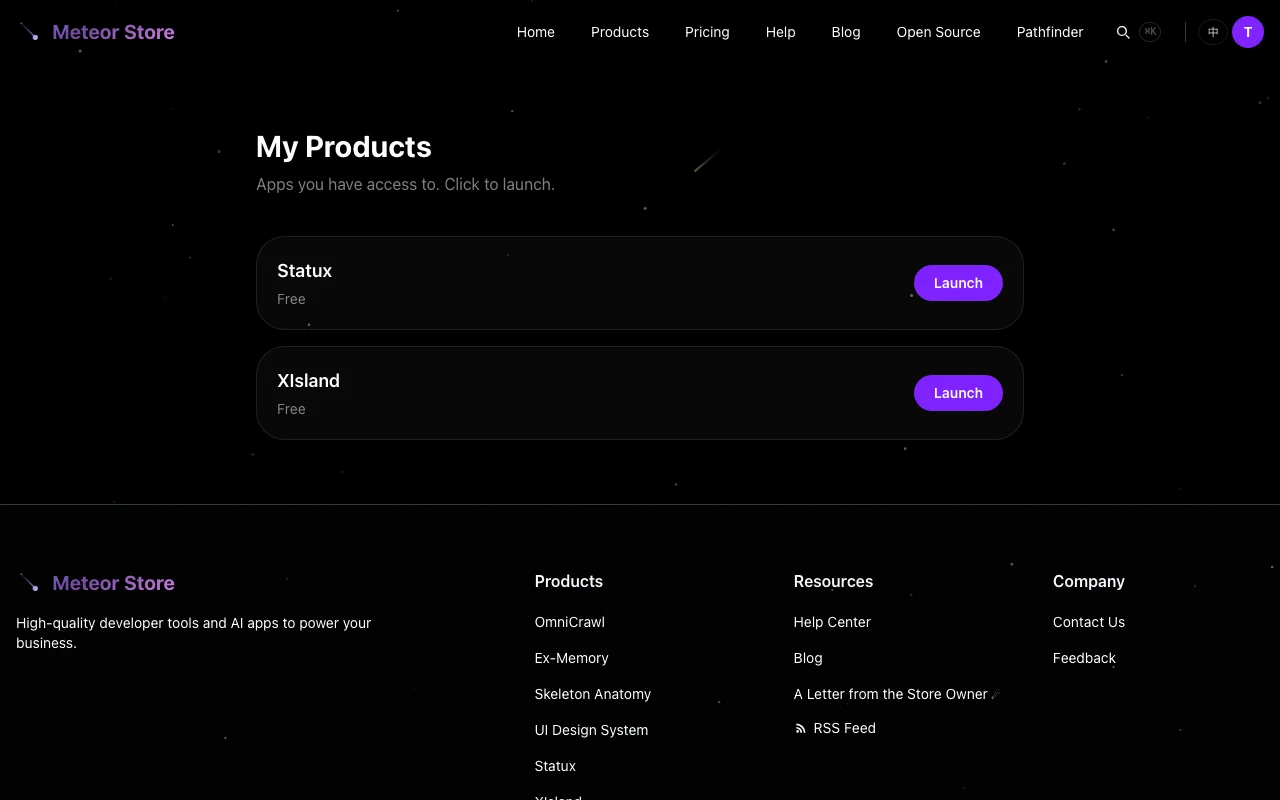 Everything you have access to lives on the My Products page. Click your avatar in the top-right corner of the navigation bar and select "My Products" from the dropdown.
Your access can come from four different sources, but they all show up in the same place:
- Direct purchase — you bought a single product on its detail page. Paid products stay on your account permanently.
- Free claim — you claimed a product with a ¥0 pricing tier. Claimed products work the same as purchased ones, minus the license key and confirmation email.
- Meteor Pass — you hold an active Pass subscription (monthly, annual, or lifetime). Every product in the store is covered. Pass-covered items show a "Pass" badge on the My Products card. If your Pass expires, those products become inaccessible until you renew.
- Invitation code redemption — you entered an invitation code on the Redeem page and received the corresponding license key or product access.
If you are signed out, My Products will not show anything. Sign in with the same email address you used when purchasing, claiming, or redeeming.
Open a web app in your browser
Some products are pure web applications — there is nothing to download or install. On the My Products page, these entries show a product name and a "Pass" badge if applicable. Click the card, and the app opens directly in your current browser.
Before rendering the app, the server checks that your account is authorized. If the check fails — for example, because your Pass has expired — you will see an error page instead of the app.
A subset of products currently support in-browser access. If you are not sure whether a product is a web app, check its detail page: products with an embedded "Free Trial" section are web apps.
Download an installable app
Some products are packaged as installer files — usually a .dmg for macOS. You do not download these directly from the My Products page. Instead, click the product entry on My Products and you will land on the product detail page. Scroll to the download section at the bottom.
The download section lists the available installer files — typically a .dmg with version and checksum information. Click the download link for your system.
Here is what happens when you click a download link:
- The server checks that your account has the correct entitlement for that product.
- If authorized, the server generates a short-lived download link — valid for 5 minutes.
- Your browser is redirected to that link and fetches the package directly from the storage service.
The installer file itself has no public URL, and the download link expires quickly. If the download does not start within a few seconds of clicking, or if the link has expired, just click the download link again on the same product page — a fresh link will be generated.
After downloading on macOS
Once the .dmg file is on your Mac, double-click it to mount the disk image, then drag the application to your Applications folder. The app is now installed.
If macOS blocks the app on first launch with a "cannot be verified" warning, follow the steps in the next section. Do not turn off Gatekeeper or run terminal commands that bypass system security — there is a safe, built-in way to open the app.
macOS: what to do when an app will not open
The XIsland and XNook macOS packages currently available from Meteor Store have not been signed with a Developer ID certificate or notarized by Apple. macOS may show a security warning when you first open them.
This section covers the specific warning that says the developer cannot be verified or Apple cannot check the app for malicious software. If macOS reports that the app is damaged or will damage your computer, stop here — delete the file, download it again from the official product page, and contact technical support if the warning persists.
For the "cannot be verified" warning, confirm that the file came from the official product page, then choose Open Anyway in System Settings → Privacy & Security:
- Try to open the app once in Finder — the security warning will appear. Dismiss it.
- Open System Settings from the Apple menu.
- Select Privacy & Security and scroll down to the Security section.
- Find the blocked app and click Open Anyway. This button appears for a limited time after the blocked launch attempt.
- Double-check the app name. If you are confident the file came from an official Meteor Store product page, authenticate when prompted and click Open.
Once you do this, macOS saves the app as an exception and you can open it normally going forward. See Apple's official guidance in Safely open apps on your Mac ↗ for more detail.
If Open Anyway does not appear in Privacy & Security, make sure you have already tried to open the app at least once. On a Mac managed by a school or company, manual exceptions might be blocked — contact your device administrator in that case.
View license keys in your Account
Some products are delivered as license keys. You do not need to open or download anything — you need the key string that was generated for your purchase.
All your license keys are listed on the Account page. Click your avatar, select "Account" from the dropdown, then scroll to the license keys section. Each entry shows the product name and the full key.
Where and how you use the key depends on the product itself. Some apps show an activation window on first launch, some have a license field in their settings, and some only need the key once during setup. Read the product description or the instructions that came with the key for the specific activation flow.
License keys and invitation codes are different
A license key is automatically generated when you purchase or redeem a product. An invitation code (in the INV-XXXX-XXXX-XXXX format) is a redeemable voucher created by an admin — you enter it on the Redeem page, and the system generates the corresponding license key for you. You never enter an invitation code directly into an application.
What if a product is missing from My Products
If you expected to see a product on My Products but it is not there, check the following in order:
- Correct email — Make sure you are signed into the same account you used for the purchase, claim, or redemption. The store cannot automatically associate an order with a different email address.
- Email verification — Your account email must be verified for license keys and entitlements to appear correctly. Check your Account page for the verification status.
- Pass expiration — If the product was covered by Meteor Pass and your Pass subscription has expired, Pass-covered products disappear from My Products until you renew. Single products you bought separately are unaffected.
- Refund or revocation — If you requested a refund, the corresponding license key is revoked and the product is removed from your account. Check your order history for the order status.
- Pending redemption — Invitation codes are redeemed instantly, but if the page showed an error during redemption, the access may not have been granted. Check your order history or try redeeming again.
If none of these apply and you still cannot find a paid product, note the product name, the order number from your confirmation email, and the purchase email address. Contact technical support with these details so the store owner can look into it.
Related articles
How to Browse, Filter, and Compare Products
Browse products by category, view details and pricing, and find the right product for you.
How to Claim a Free Product
Find free or limited-time-free products, claim them, and access them anytime from My Products.
How to Buy a Product or Meteor Pass
Learn about one-time purchases, Meteor Pass monthly/annual/lifetime plans, and post-payment delivery.
Still need help?
Send us the details of your issue, including the relevant environment and error message, and we'll look into it.
Submit a question