How to Create an Account and Verify Your Email
Complete the registration form, pass the CAPTCHA, find the verification email, and activate your account.
What you will accomplish
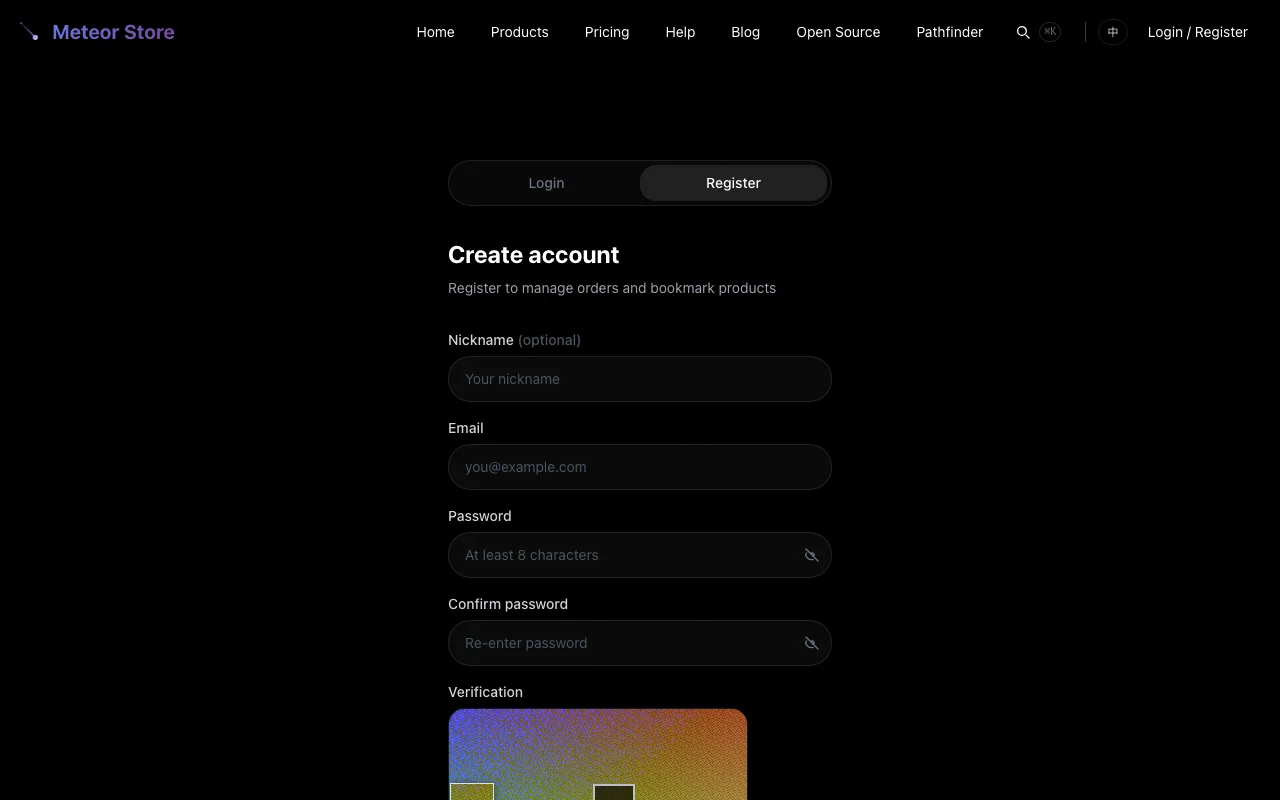 Create a Meteor Store account and verify your email address. Once verified you can favorite articles, submit blog posts, claim free products, and manage your orders.
Before you start
You need an email address that has not been registered on Meteor Store, and a few minutes of your time.
Registration steps
Step 1: Open the registration form
Click the "Login" button in the top bar from any page. Look for the "No account yet? Register now" link in the middle of the login page — clicking it switches the form to registration mode.
Step 2: Fill in your details
In registration mode the form shows four fields:
- Email: Enter your regular email address. The verification email will be sent here.
- Password: At least 8 characters. Mix letters, digits, and symbols. Avoid common passwords.
- Confirm password: Type the password again to make sure there are no typos.
- Nickname (optional): If left blank, the part before the @ in your email will be used as your display name.
Step 3: Complete the slider captcha
Click the slider area and drag the puzzle piece to the gap with your mouse or finger. The server verifies the target position; if the offset exceeds 5 pixels you will need to try again.
Step 4: Agree to the terms and submit
Check the "I have read and agree to the Terms of Service, Privacy Policy, and End User License Agreement" box, then click "Register."
Email verification
Find the verification email
After successful registration the page will tell you to check your inbox. It also shows a masked version of your email address (e.g., te**@example.com) so you can confirm it is correct.
If you cannot find the email in your inbox, check your spam and promotions folders.
Click the verification link
The verification email contains a link. Clicking it will open the Meteor Store website and show the verification result on the page.
The verification link is valid for 24 hours. If it expires, you can return to the registration/login page and request a new one.
Resend the verification email
On the "Pending verification" screen shown after registration, click the "Resend" button. You can resend once every 15 minutes. If the original email failed to send (for example due to a temporary email service outage), the resend button can recover from that as well.
After verification
The system will not sign you in automatically after verification — you need to go back to the login page and enter your email and password. This is an intentional security measure: the person who verified the email is not necessarily the person who knows the password.
Common questions
"This email is already registered"
The email address is already in use. Go to the login page and sign in directly. If you have forgotten your password, click the "Forgot password?" link on the login page to reset it.
"This email cannot be registered through the public entry"
Administrator emails cannot create accounts through the public registration page. If you believe this is an error, contact an administrator.
The slider captcha keeps failing
Make sure your cursor or finger stays pressed throughout the drag, and that the puzzle piece aligns with the gap. If the problem persists, try refreshing the page to get a new challenge.
Email service temporarily unavailable
If the registration endpoint returns a 503 error, the email service is temporarily down. Please try again later. This happens very rarely.
Next step
After logging in, consider going to your Account and setting up your nickname and avatar to personalize your profile.
Related articles
How to Log In, Recover or Reset Your Password
Log in with your email and password, handle common login errors, and reset your password via email.
How to Edit Your Nickname, Avatar, and Bio
Update your nickname, upload an avatar, and set your bio on the account page.
How to Change Password, Export Data, or Delete Your Account
Manage your account security: change your password, export your data, and delete your account.
Still need help?
Send us the details of your issue, including the relevant environment and error message, and we'll look into it.
Submit a question