How to Use Playground to Try Products Online
Try core product features directly in the Playground without downloading or logging in.
What is Playground
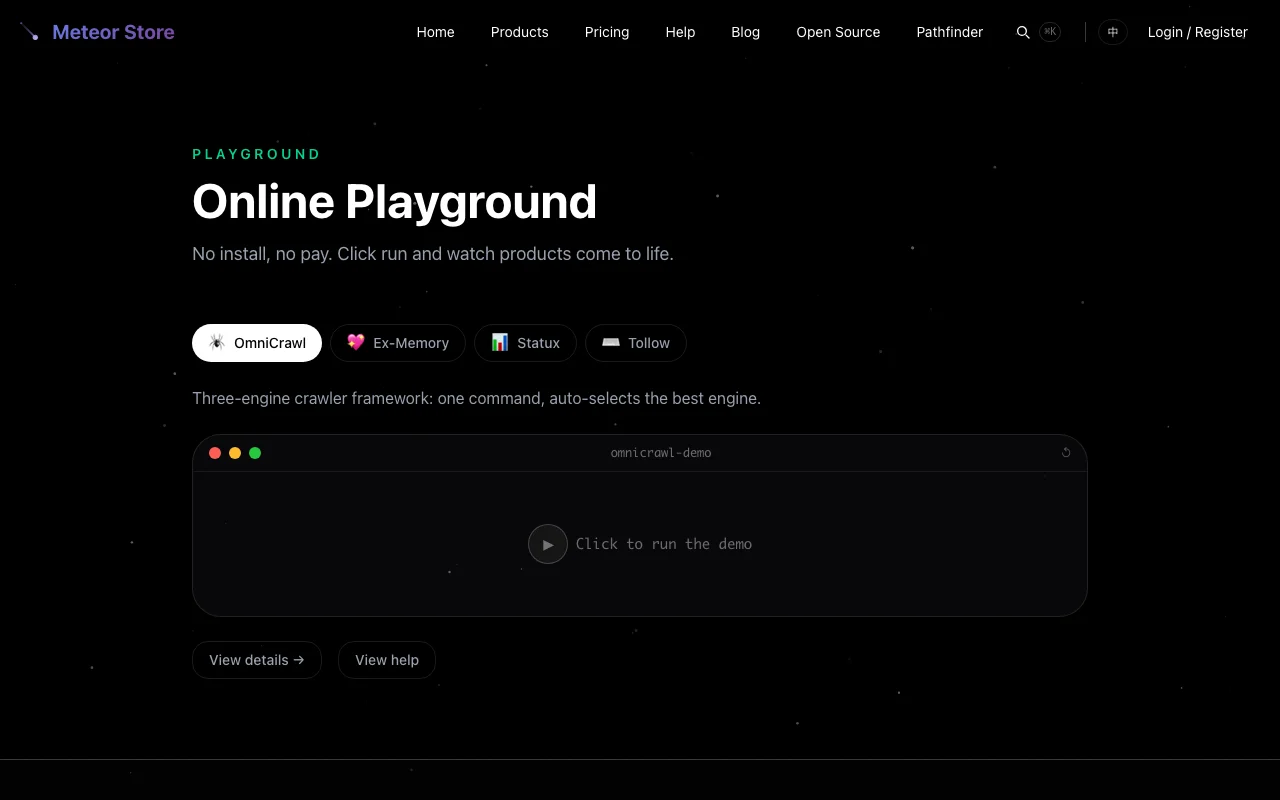
Playground is Meteor Store's online product demo area, available at /playground. It collects in-browser demonstrations of several products, so you can get a feel for what they do without downloading, registering, or logging in.
Each product demo simulates a real terminal window — the commands and output you see are not actually running on your computer, but they faithfully reproduce the interface and feedback you would get when using the product for real. That is enough to decide whether it is the right tool for you.
Accessing Playground
Playground is open to everyone; no login is required. You can reach it by:
- Clicking the "Playground" link in the top navigation bar on any page
- Typing
https://imagentx.top/playgrounddirectly into your browser's address bar
Once the page loads, you will see the "Playground" title with a short description, followed by a tab bar of product demos and a simulated terminal window.
Browsing and switching product demos
Each product that participates in Playground is presented as a tab. Click any tab to switch to that product's demo. The current lineup includes:
- OmniCrawl — A multi-engine web scraping library. The demo walks through installation, basic fetching, and bypassing WAF-protected sites.
- Ex-Memory — A chat-history vectorization and persona-generation tool. The demo shows importing chat logs, generating an MBTI profile, and simulating conversational replies.
- Statux — A terminal status-bar utility. The demo displays a real-time status bar inside iTerm2 that monitors a running AI agent.
- Tollow — A typing practice app. The demo shows how Tollow picks passages from classic books for English typing drills.
Click any tab to switch demos. The terminal animation replays each time you switch. You can click the current tab again to replay it without switching.
Understanding what each demo shows
Each product demo has three parts:
Product description
A one-line sentence below the tab bar tells you what the product does. If you are unsure whether a product is relevant, read this line first.
Terminal simulation
This is the core of the demo. A simulated terminal window displays commands and output line by line, reproducing the real interface feedback you would see in practice. Commands start with $, comments start with #, and output lines show what the command produces.
All demo content is pre-scripted static text. It does not connect to external services, does not consume any API quota, and does not execute any code in your browser.
Next-step links
Two buttons sit below the demo area:
- View product details — Opens the product's detail page with the full feature list, pricing, and usage instructions.
- Read help docs — Opens the help center index where you can find more tutorials and FAQs.
If a demo piques your interest, "View product details" is the natural next step.
Limitations of Playground demos
Playground is built for quick discovery, not full usage. Keep these limits in mind:
- The terminal demo is a static animation, not a real terminal. You cannot type your own commands in the demo window.
- Demos cover representative workflows, not every feature a product offers.
- Demos do not save any data — switching tabs starts the animation from the beginning.
- Demos do not require an API key — no AI service is called behind the scenes.
To get the full product experience, choose the free tier on the product page (if one exists) or purchase the product, then open it from the "My Products" page.
Which products appear in Playground
Not every product has a Playground demo. Currently, Playground features command-line-adjacent tools that produce text output suitable for terminal simulation. In-browser web apps (such as Chakra Visualizer and Skeleton Anatomy) have their own trial routes at /apps/{product-id}/trial — these are separate from Playground.
Downloadable macOS apps and license-key-only products do not have Playground demos at the moment, since they require local installation or third-party activation and are harder to showcase inside a browser.
Frequently asked questions
Do I need to log in to use Playground?
No. Playground is fully open — you can browse every demo without logging in. This is intentional, so you can learn about products without sharing any personal information.
Is the demo content identical to the real product?
The demo shows real interface output and formatting, but it is a pre-scripted animation, not a live runtime environment. The real product has a broader feature set and more flexibility.
Why are some products missing from Playground?
Playground is best suited for products with command-line interfaces or text output that can be simulated in a terminal. Purely graphical apps and locally installed macOS tools do not fit this format — they have their own trial or preview mechanisms.
Related articles
Still need help?
Send us the details of your issue, including the relevant environment and error message, and we'll look into it.
Submit a question