First Time Using Meteor Store
Learn what Meteor Store is, what sections the homepage has, and where to start exploring.
Welcome to Meteor Store
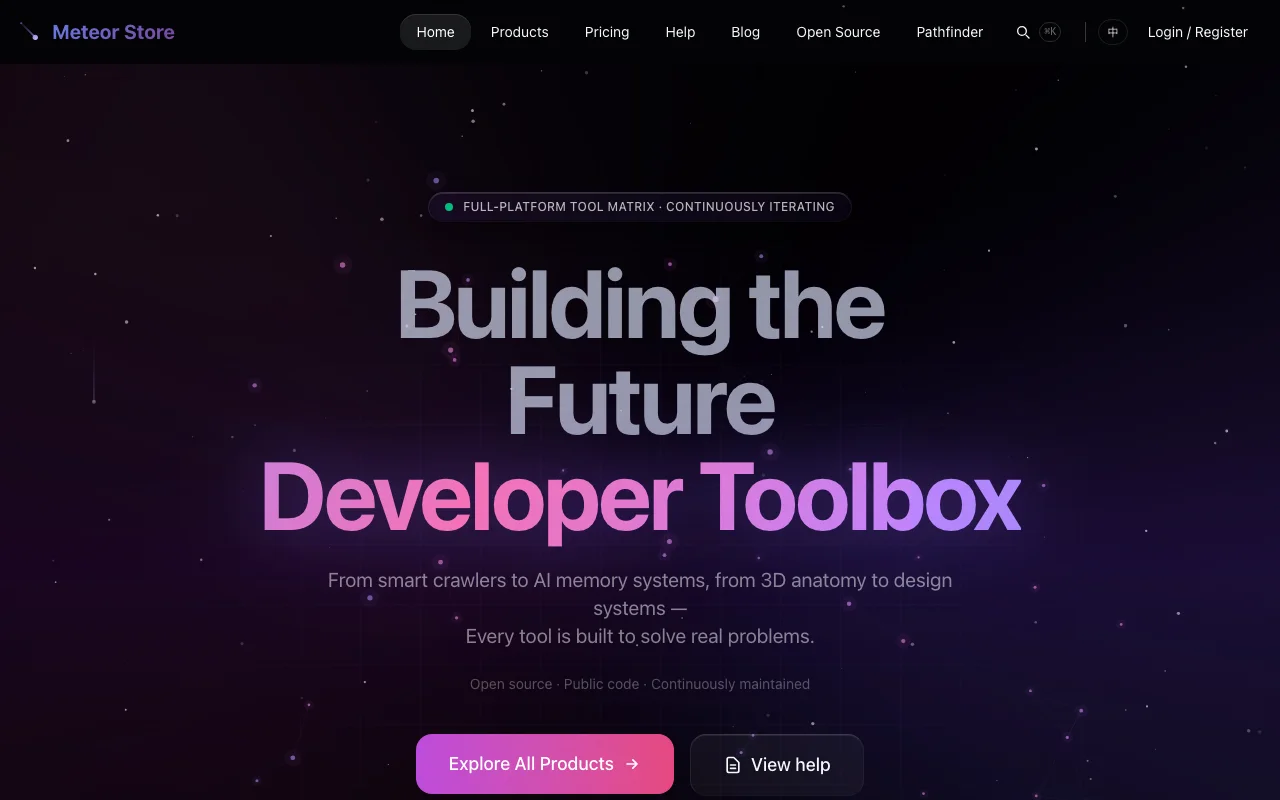 Meteor Store is a toolkit site for developers and creators, built and maintained by an indie maker. It carries online apps you can open right in the browser, macOS tools you download and run locally, and software products delivered as license keys.
If this is your first time on the site, this article will walk you through what is here and where to begin.
What is on the homepage
The homepage is the front window of the shop. From top to bottom:
- Brand and navigation bar — A sticky navigation bar at the top. On the left is the "Meteor Store" wordmark with a meteor icon; on the right are links to Products, Help, Blog, Open Source, and Pathfinder. A search button sits next to them — press
⌘K(orCtrl+Kon Windows) to open site-wide search. - Hero section — The first screen you see, with a one-line summary of what the maker does.
- Partners and product showcase — Scroll down and you will find product cards, each showing the product name, a short description, and the lowest available price.
- Pricing section — Further down is the Meteor Pass pricing block. Meteor Pass is the all-access membership: monthly, annual, or lifetime. One Pass covers every product in the store.
- FAQ — Below pricing, a set of common questions new visitors ask — refund policy, how to get products after purchase, and macOS security warnings.
- Footer — At the very bottom: links to every product, resource links (Help, Blog, Story), company links (Contact, Feedback), and legal pages (Privacy Policy, Terms of Service, Refund Policy).
Where to start
Pick a path based on what you want to do:
- Browse what is available — Click "Products" in the top navigation or scroll to the product showcase. Each product has its own detail page with features, pricing, and download instructions.
- Try something for free — Some products have a ¥0 tier. Click "Claim Free" on the product page and it will be added to your account. Products that support in-browser trial also have a "Free Trial" button — you can try them without logging in.
- Get the all-access membership — If several products catch your eye, Meteor Pass is often cheaper than buying each one separately. It covers every product in the store, including future releases.
- Read or submit articles — The "Blog" link leads to articles by the store owner and readers, organized into themed sections with RSS feeds. After signing up and logging in, you can submit your own posts. Published posts go live after review.
- Get help or contact the maker — The "Help" link opens the help center with categorized answers to common questions. The "Feedback" link in the footer lets you send a question directly to the store owner.
A few concepts to know first
Products vs. Meteor Pass
There are two kinds of things you can pay for: individual products and Meteor Pass. A single product is a one-time purchase — you pay once and keep it. Meteor Pass is the all-access membership: once you have it, every product is available to you, paid monthly, annually, or once for a lifetime. Pass subscriptions expire (except lifetime); individual products do not.
Web apps vs. downloadable apps vs. license keys
Products reach you in three ways: some are web apps you open directly in the browser, some are DMG packages you download and install on your Mac, and some give you a license key you activate elsewhere. Check the product detail page before purchasing so you know which kind it is.
Login and account
Browsing products, reading the blog, and viewing the help center do not require an account. You only need to sign up when you want to purchase, redeem a code, submit a post, bookmark favorites, or leave a comment. Registration requires email verification; you cannot log in until your email is verified.
Open source
The "Open Source" link in the navigation lists the maker's MIT-licensed projects. They work differently from paid products — source code is freely available, no login or store payment is required.
Related articles
How to Navigate, Switch Languages & Search
Master the top navigation bar, language switcher, Spotlight search (⌘K), and footer links.
Understanding Product Types on the Site
Learn the differences between in-browser apps, downloadable apps, and license-key products.
Online Trial vs Full Access
Understand trial route limitations and what full access unlocks after purchase or claiming.
Still need help?
Send us the details of your issue, including the relevant environment and error message, and we'll look into it.
Submit a question